
Multi-Factor Authentication (MFA)
How to setup and install Multi Factor Authentication (MFA)
MFA adds additional login information to access your account. This protects your account against people stealing your username and password. This is now standard practice with all Major banks and is becoming more common in online applications.
We are using the Microsoft authenticator system to protect your email accounts. Once you have this setup and installed you will then be able to use it for other websites if they offer the facility. This improves your security using a technology you are comfortable with.
How to set up Microsoft Authenticator
Setting up the Microsoft Authenticator app normally takes around 5 minutes.
Step 1: Install the app
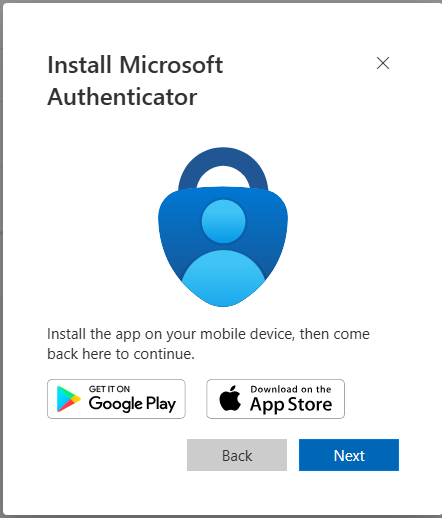
- On an iPhone or iPad, open the App Store and search for Microsoft Authenticator.
- On an Android phone or tablet, open the Google Play Store and search for Microsoft Authenticator.
- Install the app.
Step 2: Sign in to your security settings
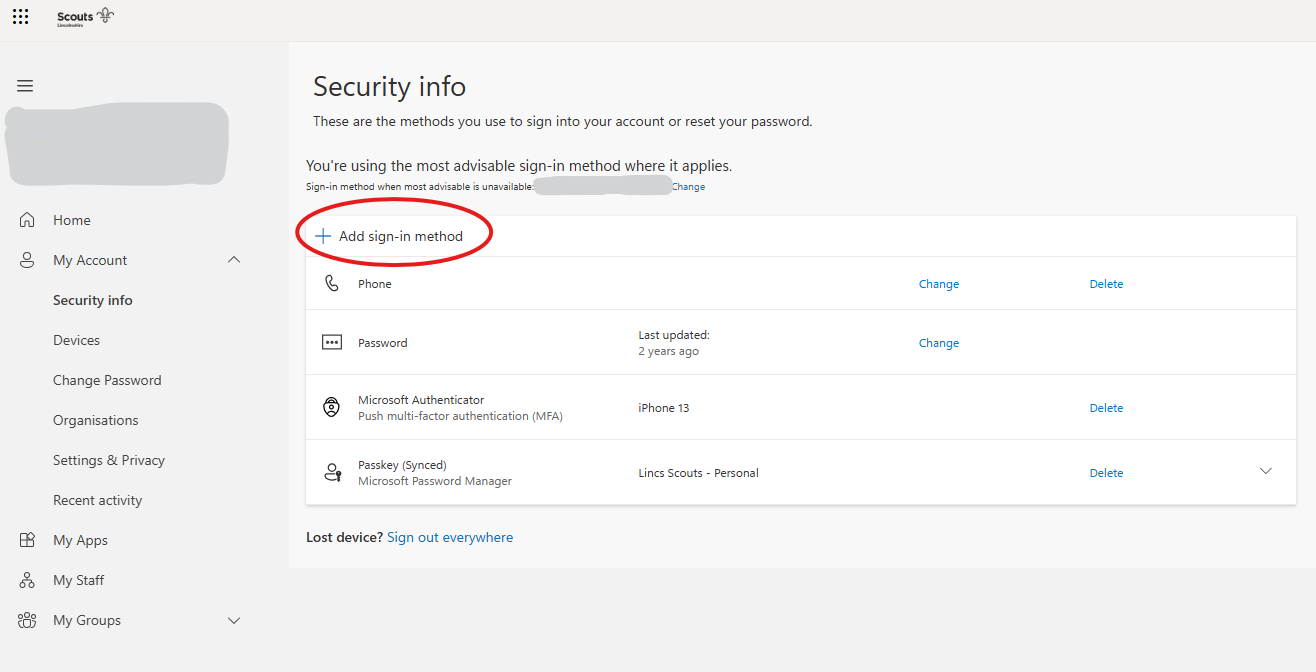
- Open a web browser and go to the security information page for your account (My Sign-Ins | Security Info | Microsoft.com).
- Sign in using your email address and current password and existing Multi-Factor Authentication.
Step 3: Add the Authenticator app
- Select Add sign-in method.
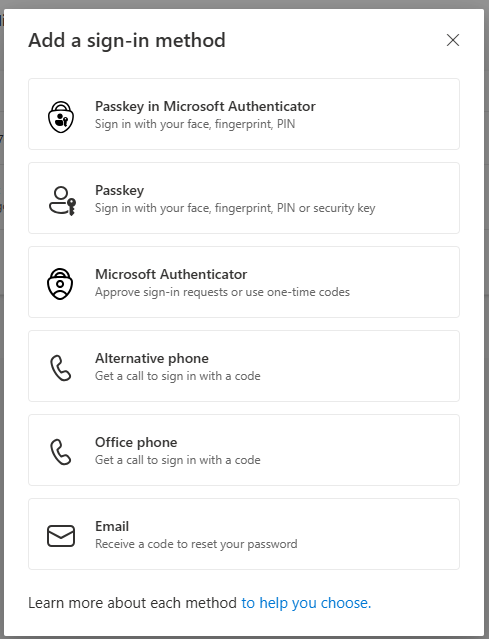
- Choose Authenticator App.
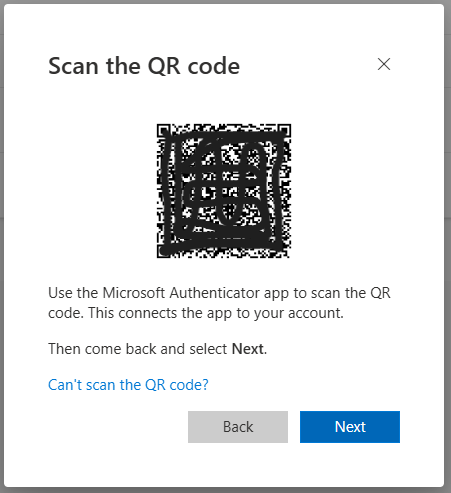
- Follow the on-screen instructions until a QR code appears.
Step 4: Link your phone
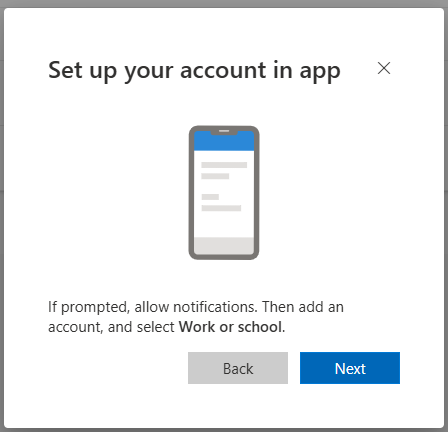
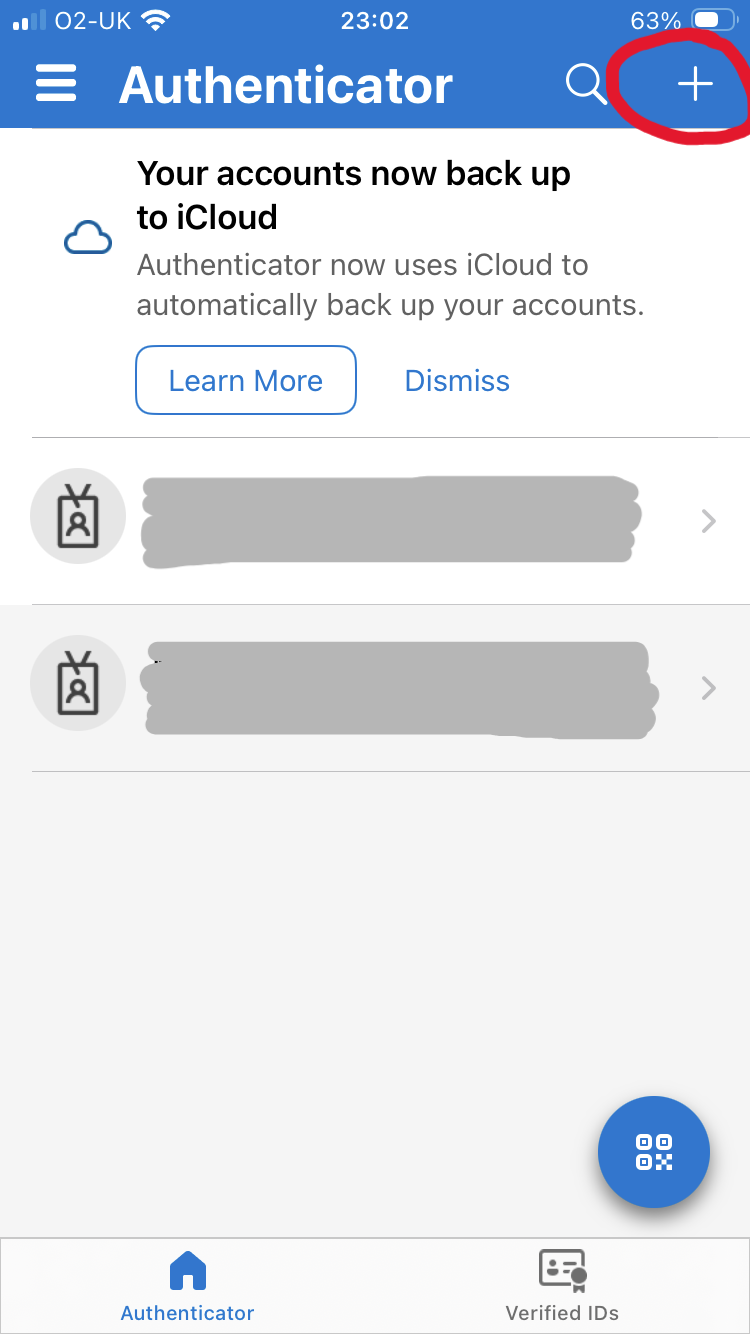
- Open the Microsoft Authenticator app on your phone.
- Select Add account (the + symbol).
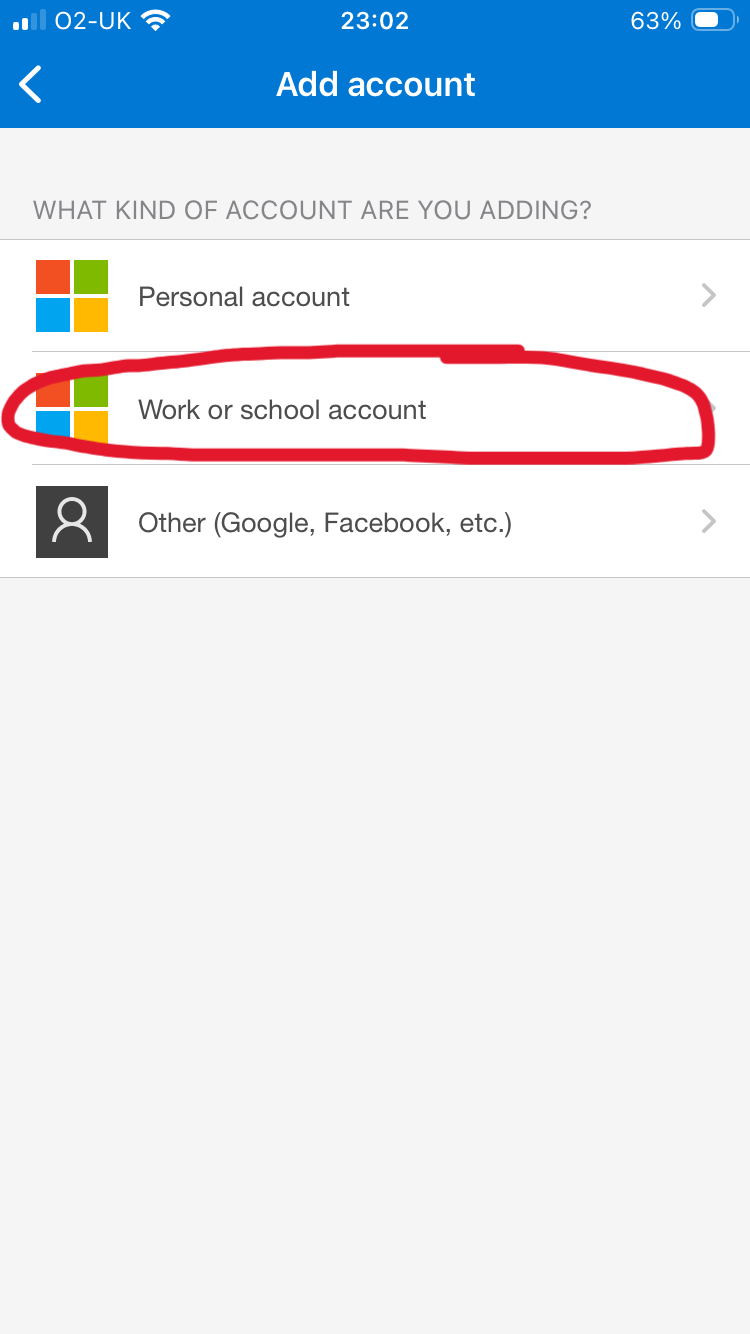
- Choose Work or School Account or Other Account, as instructed.
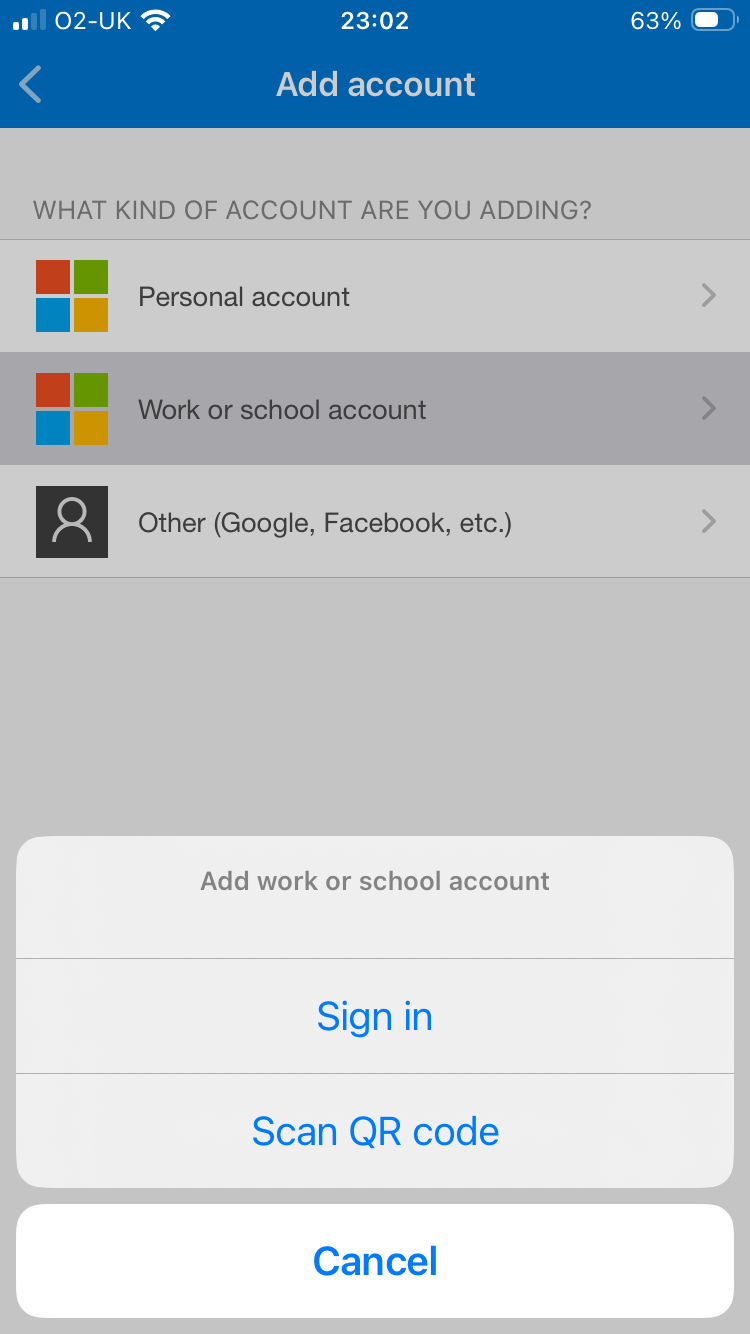
- Select Scan a QR code and use your phone to scan the code shown on your computer screen.
View more
Step 5: Test the setup
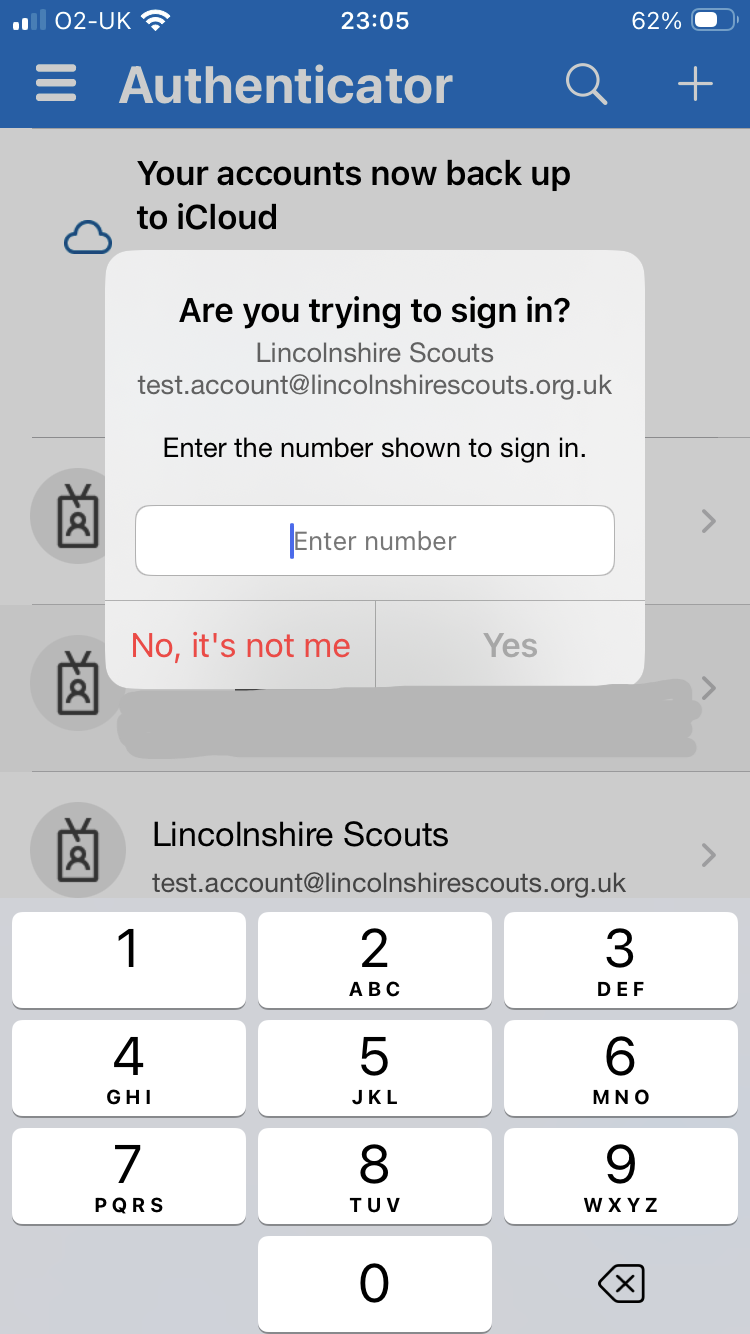
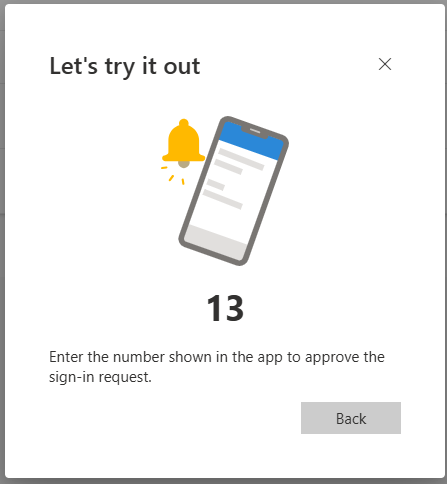
- A test notification will be sent to your phone.
- Approve the notification in the Authenticator app.
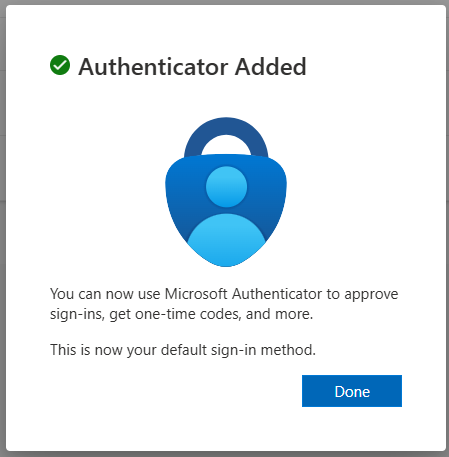
- Once approved, select Next on your computer screen to complete the setup.