App Userguide
The Lincolnshire Scouts Volunteer Support App is being introduced in phases to support key governance, assurance, and engagement activities across Lincolnshire Scouts. Functionality will be enabled gradually in line with the rollout plan.
Current Phase
In the initial phase, the app supports the recording and audit of acknowledgements for the Charity Commission Regulatory Advice Notice relating to The Scouts. This ensures consistent awareness, accountability, and a clear audit trail across the organisation.
Next Phases
Future phases will introduce additional functionality, including:
- Activity Assurance
- Minimum Ratio Calculator
- Find Welcome Conversation Volunteers
- Group and District Check‑in functionality
Availability of Features
All other features will remain disabled until the relevant rollout phase is reached. This approach helps ensure systems are introduced safely, clearly, and with appropriate support.
Rollout Plan
The rollout plan is subject to change, and additional functionality may be added over time as requirements develop and priorities evolve.
Accessing the App
What You Need Before You Start
To access the app, you must have a Lincolnshire Scouts Microsoft 365 account.
Note: You cannot access the app using a personal Microsoft, Gmail, or other email account.
Step 1: Check If You Already Have a Lincolnshire Scouts Microsoft 365 Account
You may already have an account if you use any of the following:
- Lincolnshire Scouts (or any of its Districts) Microsoft Teams
- A @lincolnshirescouts.org.uk or other domains as listed here (https://www.lincolnshirescouts.org.uk/members/ITHub/domains) email address
- Other Lincolnshire Scouts Microsoft online tools
If you’re not sure, try signing in at:
https://www.lincolnshirescouts.org.uk/portal
If it works with your Scouts email, you’re good to go, if not, move to Step 2.
Step 2: Request a Lincolnshire Scouts Microsoft 365 Account
If you don’t already have an account, you need to request one via the Lincolnshire Scouts IT Hub.
Request access here:
https://www.lincolnshirescouts.org.uk/ITHub
On the IT Hub:
- Choose the 'New User Request' option to request a Microsoft 365 account
- Complete the form with your details
- Submit the request
Note: You must hold a member role as recorded on My Membership (/scouts.org.uk).
Your request will be reviewed, and you’ll be sent login details once your account is set up.
Step 3: Sign In to Microsoft 365
Once your account is active:
- Go to https://www.lincolnshirescouts.org.uk/portal
- Sign in using your Lincolnshire Scouts Microsoft 365 email
- Use the password provided (or one you’ve set)
You should now see the Microsoft 365 home screen.
Step 4: Access the Lincolnshire Scouts Volunteer Support App
Access via the direct link - https://www.lincolnshirescouts.org.uk/app
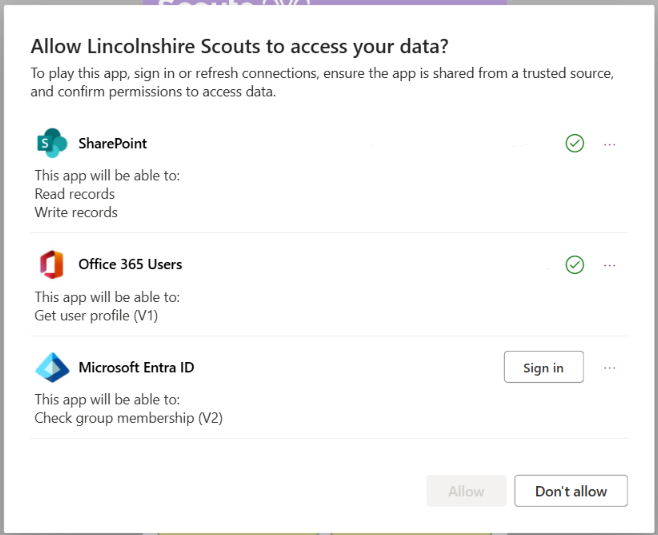
You may be prompted to 'Allow Lincolnshire Scouts to access your data'
This sign‑in request allows the Lincolnshire Scouts Power Apps application to securely connect to your Lincolnshire Scouts Microsoft 365 account.
The app only accesses basic profile and permissions information from the Lincolnshire Scouts Microsoft 365 system (such as your name, email address, and access rights) to ensure the app works correctly and that you can only see information you are permitted to view.
What you need to do
When prompted select either Sign in or Refresh connection for:
- SharePoint
- Office 365 Users
- Microsoft Entra ID
Once all connections are refreshed, click Allow
No personal data outside the Lincolnshire Scouts Microsoft 365 environment is accessed, and no additional permissions beyond those required for the app to function are granted.
Home Screen
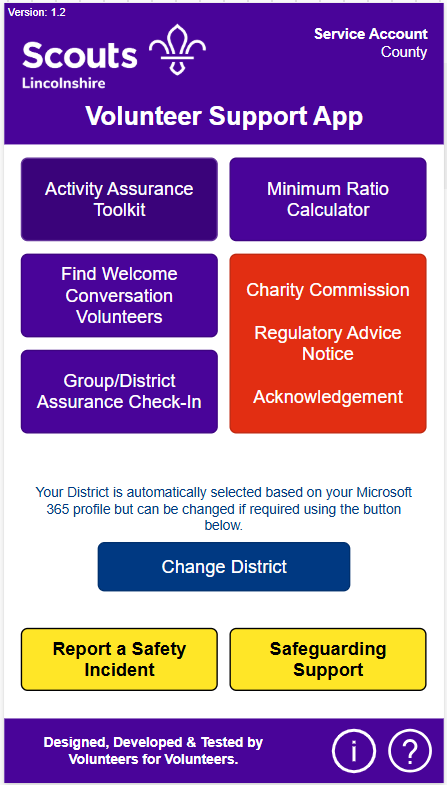
From the home screen you can access:
Charity Commission - Regulatory Advice Notice Acknowledgement
- Log your Trustee Boards acknowldgement of the Regulatory Advice Notice.
Activity Assurance Toolkit
- Submit, manage, or review activities/events that require approval under Policy, Organisation & Rules (POR).
Group/District Assurance Check‑In
- (If enabled) Review or update Group/District assurance status.
Find Welcome Conversation Volunteers
- Search for approved Welcome Conversation Volunteers in any District.
Minimum Ratio Calculator
- Check the minimum adult supervision ratios for your event type and section.
Change District
- Your District is selected automatically from your Microsoft 365 profile.
- Tap here if you need to change it.
Report a Safety Incident / Safeguarding Support
Quick links to national Scouts safety and safeguarding processes.
Charity Commission - Regulatory Advice Notice Acknowledgement
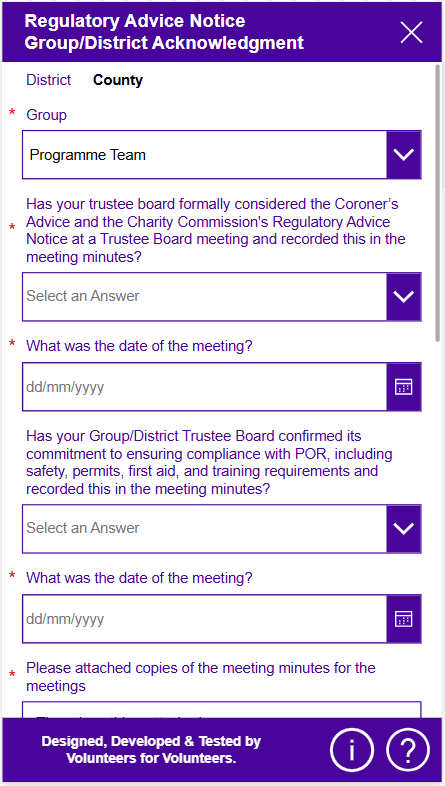
This section of the app allows you to review and formally acknowledge the Charity Commission’s Regulatory Advice Notice relating to The Scouts. By acknowledging the notice, you confirm that you are aware of the guidance issued, understand your responsibilities, and recognise how it applies to your role within Scouting.
This acknowledgement is important because it demonstrates The Scouts’ commitment to good governance, transparency, and compliance with charity law. It helps ensure that all relevant volunteers are informed of the Charity Commission’s expectations and supports consistent, accountable decision‑making across the organisation.
Selecting or Changing Your District
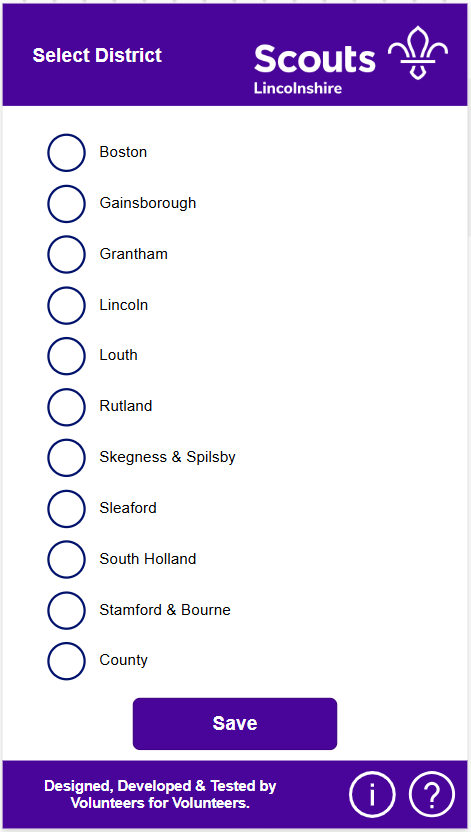
Use the Select District page to choose the District you belong to.
Tap a District name, then press Save.
Your choice affects:
- Where activity submissions are routed
- Which volunteers appear in search results
Activity Assurance Toolkit
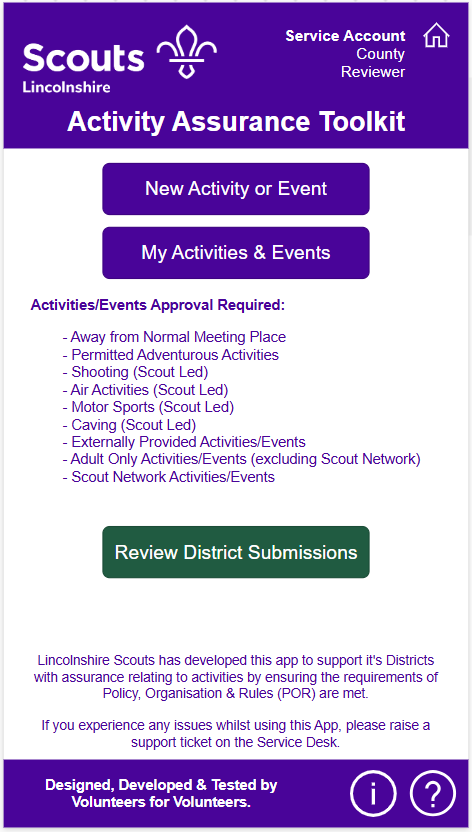
Use this area to create new activities, manage your submissions, or, if you are a reviewer, approve District events.
Menu Options:
- New Activity or Event
- My Activities & Events
- Review District Submissions (Reviewers only)
A list of activity types requiring approval is shown on the page.
Creating a New Activity or Event
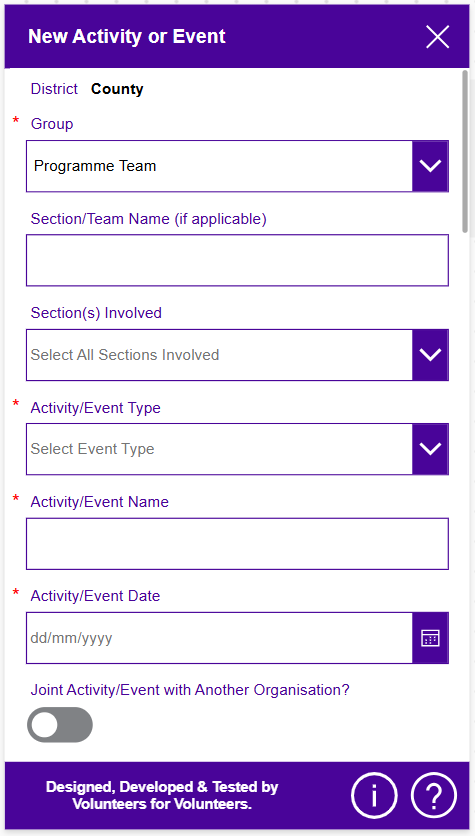
Fill in the form with the details of your planned activity.
Required fields include:
- Group
- Section(s) involved
- Activity/Event Type
- Activity/Event Name
- Activity/Event Date
You can also:
- Add a Section/Team name (optional)
- Indicate if the event is joint with another organisation
Tap Submit when finished.
My Activities & Events
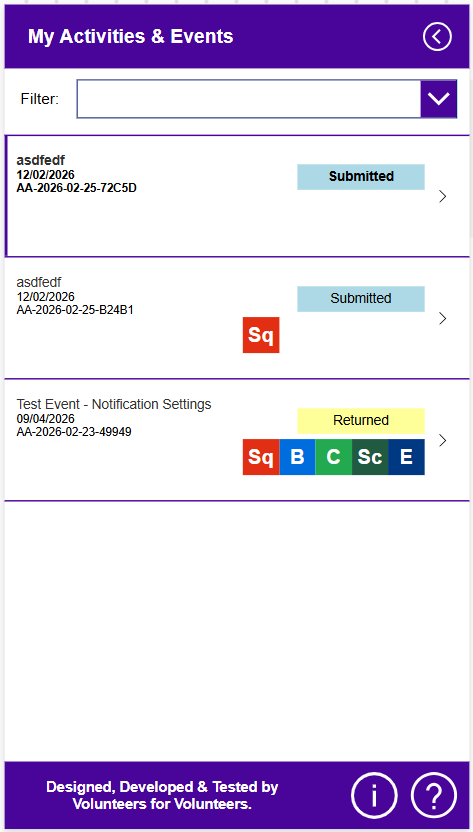
This screen shows all activities you’ve submitted.
Each entry displays:
- Event name
- Date
- Unique activity reference ID
- Status (Submitted / Returned / Approved)
- Section icons (Sq, B, C, Sc, E)
Tap an event to view or update it.
You can filter by status.
Managing an Activity or Event
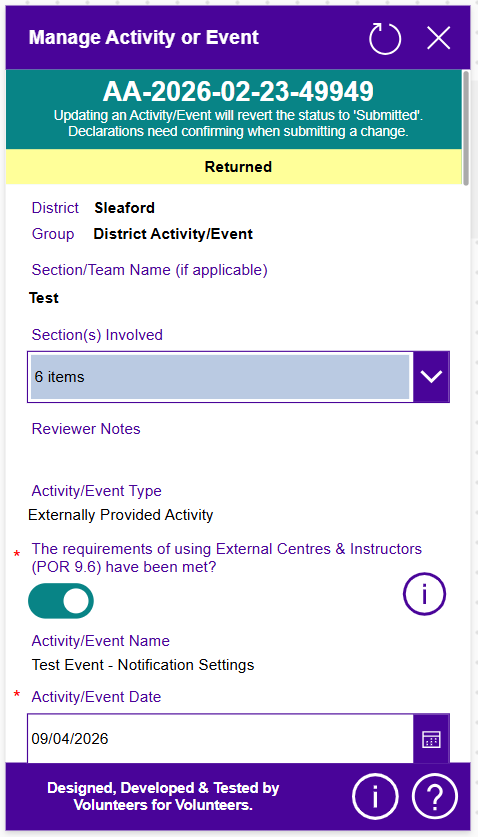
When editing an event:
Updating an event automatically returns the status to Submitted.
You can:
- Change basic details
- Adjust sections involved
- Confirm declarations (e.g., external provider requirements)
- Update the event date or name
- Read reviewer notes
Tap Submit to resubmit for approval.
Minimum Ratio Calculator
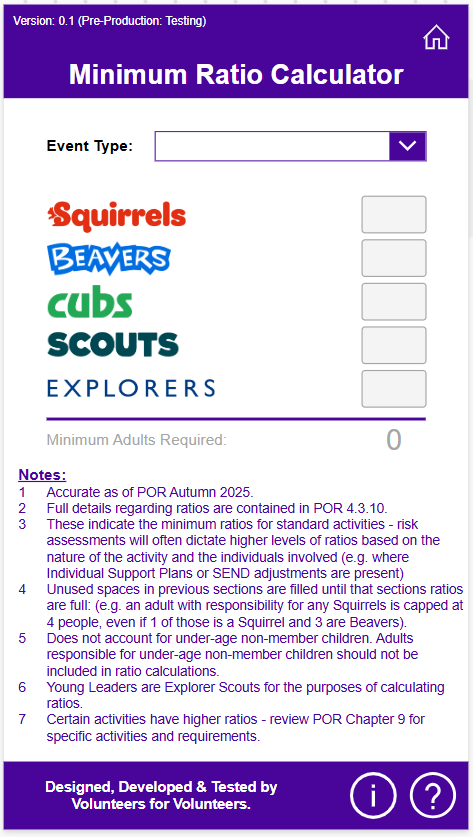
Select the Event Type.
Enter the number of young people attending in each section:
- Squirrels
- Beavers
- Cubs
- Scouts
- Explorers (/Young Leaders)
The calculator will display the minimum Adults Required (based on POR 4.3.10)
Notes at the bottom explain rules for SEND adjustments, Young Leaders, and activities requiring higher ratios.
Find Welcome Conversation Volunteers
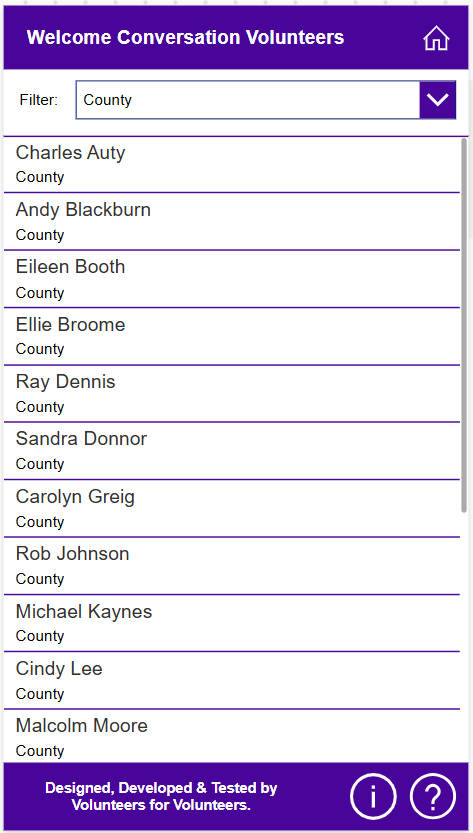
Use the filter to choose a District.
A list of Welcome Conversation Volunteers will appear including:
- Name
- District
Scroll to browse all volunteers.
Reviewer Dashboard
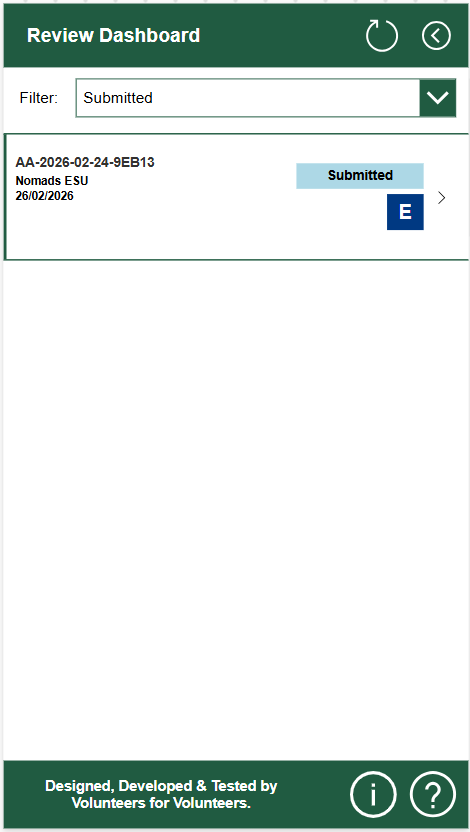
Reviewers can:
- Filter events (e.g., Submitted, Returned)
- See all submissions from their District
- Open any event for review
Selecting an event opens the full review screen.
Reviewing an Activity or Event
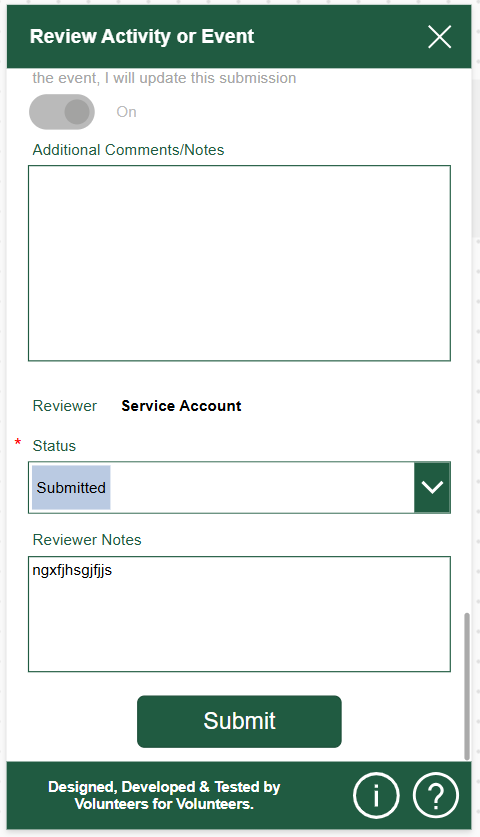
As a reviewer, you can:
- Add additional comments
- Set the status (Submitted → Returned or Approved)
- Enter reviewer notes
Tap Submit to save your decision.